How to Isolate Hardware vs Software Issues in Windows
Most PC problems can be traced back to either hardware faults or software conflicts. But how do you know which one is causing your issue?
A clean boot allows Windows to start with only essential services and drivers, disabling all third-party software that could be interfering, making it easy to determine if your problem is hardware or software related.
Common scenarios: Your PC crashes during games. Is it the GPU overheating, or is RGB software interfering? Your system freezes randomly. Failing RAM, or a driver conflict?
Before you RMA hardware or reinstall Windows, perform this procedure and identify if: Is this a hardware problem or a software problem?
A clean boot helps you figure it out in 10 minutes.
What Is a Clean Boot?
A clean boot starts Windows with:
- ✅ Only essential Microsoft services running
- ✅ Only critical system drivers loaded
- ❌ No third-party startup programs
- ❌ No non-essential background services
The logic is simple:
- Problem disappears in clean boot → Software conflict
- Problem persists in clean boot → Likely hardware
This single test can save hours of random troubleshooting.
When to Use Clean Boot
Use clean boot to diagnose:
Performance Issues:
- Random crashes or BSODs
- System freezing or hanging
- High CPU/memory usage with nothing running
- Game stuttering or sudden FPS drops
Hardware Detection Problems:
- GPU not detected or underperforming
- USB devices not recognized
- Audio crackling or cutting out
- Second monitor not working
Stability Issues:
- Programs crashing at launch
- Windows updates failing
- Drivers failing to install
Don't use clean boot for:
- ❌ PC won't power on (hardware issue)
- ❌ BIOS/POST errors (hardware issue)
- ❌ Boot device not found (hardware/BIOS issue)
- ❌ Physical damage (obviously hardware)
Prerequisites
Before starting:
- Save all open work
- Close all programs
- Have 10-15 minutes available
- Be ready to restart your PC
No data will be lost - this process only disables services temporarily.
Step 1: Open System Configuration
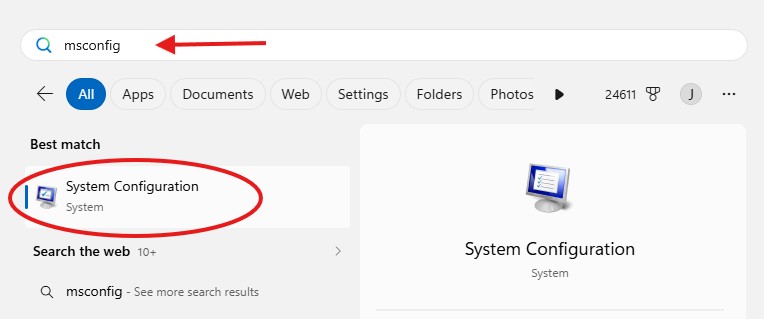
- Press
Win + Rto open the Run dialog or search for "System Configuration" in the Start menu - Type
msconfig - Press
Enter
The System Configuration window will open.
Step 2: Disable Non-Microsoft Services
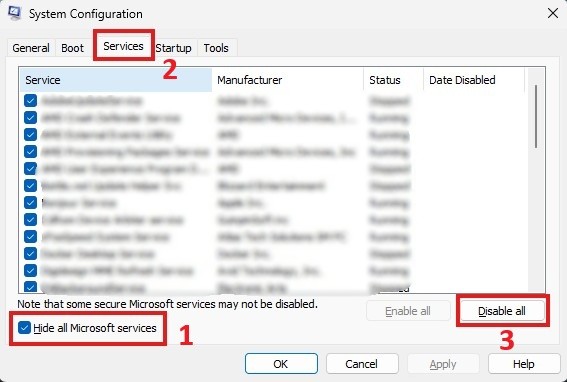
- Click the Services tab
- Check the box: "Hide all Microsoft services"
- Click "Disable all"
- Click Apply (don't restart yet)
What this does: Turns off third-party background services that might conflict with hardware or cause stability issues.
Common culprits you just disabled:
- RGB control software (Corsair iCUE, NZXT CAM, Razer Synapse)
- Game launchers (Steam, Epic Games, EA)
- Update services (Adobe, Java)
- Monitoring tools (MSI Afterburner, HWiNFO)
- VPN clients
- Backup software
Step 3: Disable Startup Programs
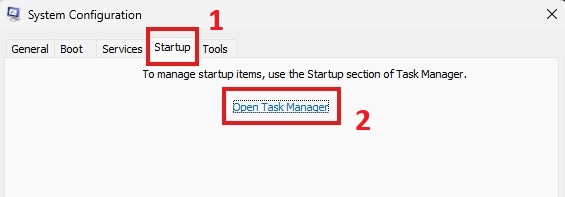
- Click the Startup tab in System Configuration
- Click "Open Task Manager"
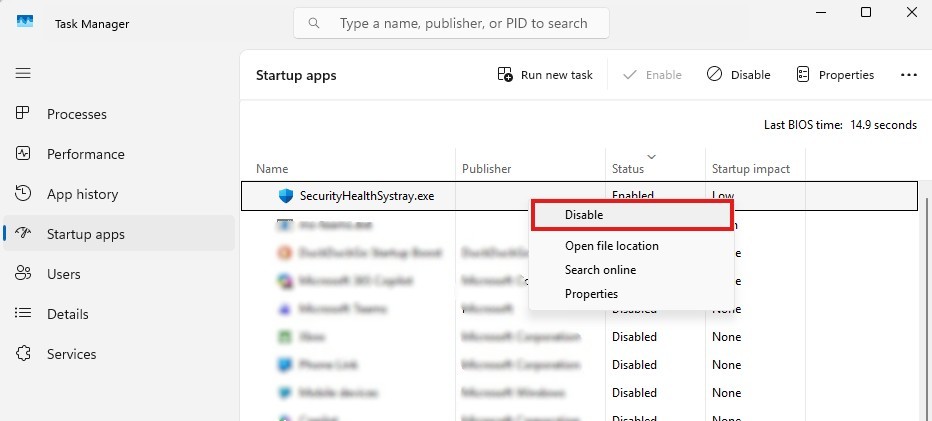
- In Task Manager, right-click each enabled program and select Disable
- Disable all startup programs
- Close Task Manager
- Return to System Configuration
What this does: Prevents programs from automatically starting with Windows.
Programs you just disabled (examples):
- Discord
- Spotify
- GeForce Experience
- Steam
- OneDrive
- MSI Afterburner
Don't worry - you can re-enable these later.
Step 4: Restart in Clean Boot Mode
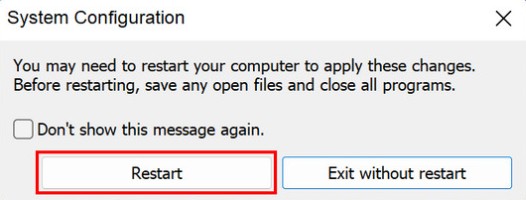
- Click OK in System Configuration
- When prompted, choose Restart
Your PC will now boot with minimal services and programs.
What to expect:
- Boot might be slightly faster
- No RGB lighting control (default colors only)
- No startup programs in system tray
- Basic Windows functionality only
Testing in Clean Boot Mode
Now test for your original problem:
For Crashes/BSODs:
Run the task that normally causes crashes (play a game, run an application, stress test).
For Performance Issues:
Monitor CPU/GPU usage, check for stuttering, test frame rates.
For Detection Issues:
Check if GPU, USB devices, or peripherals are now recognized.
Test for at least 15-30 minutes to ensure the problem doesn't reoccur.
Interpreting Results
✅ Problem Is GONE in Clean Boot
Diagnosis: Software conflict
One of your disabled services or startup programs is causing the issue.
Next steps:
Re-enable services one at a time:
- Press
Win + R→ Typemsconfig→ Enter - Go to Services tab → Check "Hide all Microsoft services"
- Enable one service
- Restart
- Test if problem returns
- Repeat until you find the culprit
- Press
Re-enable startup programs one at a time:
- Open Task Manager (Ctrl + Shift + Esc)
- Go to Startup tab
- Enable one program
- Restart
- Test if problem returns
Most common culprits:
| Software Type | Examples | Why It Causes Issues |
|---|---|---|
| RGB Control | Corsair iCUE, NZXT CAM, Razer Synapse | Conflicts with GPU/motherboard drivers |
| Overlays | Discord overlay, GeForce Experience, MSI Afterburner | Interferes with game rendering |
| Monitoring Tools | HWiNFO, GPU-Z (when polling enabled) | Conflicts with hardware sensors |
| Antivirus | McAfee, Norton, AVG | Blocks drivers or processes |
| VPN Clients | NordVPN, ExpressVPN | Network driver conflicts |
Solution:
- Update the problematic software
- Disable overlay features
- Use alternative software
- Uninstall if not essential
❌ Problem PERSISTS in Clean Boot
Diagnosis: Likely hardware issue
Software conflicts are ruled out. Clean boot has done its job - it isolated the problem to hardware.
Based on your symptoms, continue with component-specific testing:
| Symptom | Likely Component | Diagnostic Guide |
|---|---|---|
| Crashes during gaming/3D apps | GPU | GPU Troubleshooting |
| Random freezes, BSODs | RAM | RAM Testing |
| Random shutdowns under load | PSU | PSU Diagnosis |
| Slow performance, file errors | Storage | Storage Testing |
| Boot failures, POST errors | Motherboard/CPU | Boot Issues |
Each guide provides step-by-step hardware diagnostics and specialized testing tools.
Common Clean Boot Mistakes
❌ Mistake 1: Not Hiding Microsoft Services
If you disable Microsoft services, Windows may not boot properly or function correctly.
Always check "Hide all Microsoft services" before clicking "Disable all".
❌ Mistake 2: Using Safe Mode Instead
Safe Mode disables drivers and uses generic drivers, which can mask hardware issues.
Clean boot keeps drivers active but removes software conflicts.
Use clean boot for hardware diagnosis, not Safe Mode.
❌ Mistake 3: Assuming Software If Problem "Improves"
The problem must completely disappear to be software-related.
Scenarios:
| Result | Diagnosis |
|---|---|
| Crashes 100% of the time normally → Crashes 0% in clean boot | Software conflict |
| Crashes 100% of the time normally → Crashes 20% in clean boot | Still likely hardware (software reduced stress) |
| Stuttering at 40 FPS normally → Smooth 60 FPS in clean boot | Software conflict |
| Stuttering at 40 FPS normally → Less stuttering at 45 FPS | Likely hardware (less software overhead) |
Partial improvement doesn't rule out hardware.
❌ Mistake 4: Not Testing Long Enough
Some issues are intermittent. Test for at least 15-30 minutes in clean boot.
If a crash happens every 2 hours normally, test for 3-4 hours in clean boot.
Returning to Normal Boot
Once you've diagnosed the issue:
- Press
Win + R→ Typemsconfig→ Enter - Go to Services tab
- Uncheck "Hide all Microsoft services"
- Click "Enable all"
- Go to Startup tab → Click "Open Task Manager"
- Re-enable programs you need (avoid the culprit if you found one)
- Click OK → Restart
Your PC will boot normally with all services restored (except any you left disabled).
Real-World Example
Problem: PC crashes to desktop during Cyberpunk 2077 after 20 minutes.
Clean boot test:
- Played for 1 hour in clean boot → No crashes
Diagnosis: Software conflict
Re-enabling services one by one revealed:
- Corsair iCUE Service was causing GPU driver conflict
Solution:
- Updated iCUE to latest version
- Disabled GPU lighting control in iCUE
- Crashes stopped
Alternative if update didn't work:
- Use OpenRGB instead of iCUE (open-source RGB control)
- Disable RGB entirely and uninstall iCUE
Summary
Clean boot answers one critical question: Is this hardware or software?
The process:
- Disable non-Microsoft services (
msconfig→ Services) - Disable startup programs (Task Manager → Startup)
- Restart and test
Results:
- Problem gone → Software conflict (re-enable one-by-one to find culprit)
- Problem persists → Hardware issue (use component-specific diagnostics)
This 10-minute test prevents:
- Unnecessary hardware RMAs
- Pointless Windows reinstalls
- Hours of random troubleshooting
- Buying replacement parts you don't need
Always start with clean boot, not hardware replacement.
Next Steps
If software conflict (problem disappeared):
- Re-enable services/programs one at a time
- Update or replace the problematic software
- Consider alternatives (e.g., OpenRGB instead of Corsair iCUE)
If hardware issue (problem persisted):
- GPU Troubleshooting Guide - Crashes, artifacts, detection issues
Need PC build or parts?
- Custom Builder - Optimized builds
- Component Browser - Compatibility checking
Comments (0)
No comments yet. Be the first to share your thoughts!