GPU Troubleshooting Guide - Diagnose Graphics Card Issues
GPU symptoms overlap heavily with other hardware problems — a black screen, a crash, or a performance drop could point to the graphics card, a driver conflict, a power delivery issue, or something else entirely.
This guide gives you a systematic process to confirm whether the GPU is actually at fault.
Common scenarios: Your PC crashes during games. Is it the GPU overheating, or is RGB software conflicting with the driver? You're seeing visual artifacts on screen. Faulty VRAM, or a driver that needs a clean reinstall? Your monitor shows no signal. A dead GPU, or just the cable plugged into the wrong port?
Before you RMA your card or start swapping hardware, work through this guide. Most GPU issues resolve without replacement.
Covers visual glitches, crashes, detection failures, and performance problems. Have 30–60 minutes available.
When to Suspect Your GPU
Use this guide if you've already:
- ✅ Performed a clean boot and the problem persisted (Clean Boot Guide)
- ✅ Ruled out software conflicts (no RGB software, overlays, or monitoring tools interfering)
GPU-specific symptoms:
Visual Issues:
- Artifacts (visual glitches, colored squares, screen corruption)
- Screen tearing not fixed by V-Sync
- Display flickering during 3D workloads
- Black screen after Windows loads
Performance Issues:
- Crashes only during gaming or GPU-intensive tasks
- Sudden FPS drops or stuttering
- Fan spinning at 100% constantly
- GPU temperatures exceeding 85°C
Detection Issues:
- GPU not showing in Device Manager
- Display output only works from motherboard (integrated graphics)
- Monitor connected to GPU shows "No Signal"
- Windows shows "Code 43" error for GPU
- No GPU RGB lighting (if applicable)
Prerequisites
Before starting:
- Run a clean boot first - Eliminates software conflicts
- Have 30-60 minutes available for testing
- Download monitoring software (GPU-Z or FurMark) or use Windows Task Manager (already included). Task Manager shows temperature but no power or clock speed monitoring, so GPU-Z or FurMark is recommended for detailed diagnostics.
- Have access to your GPU drivers (download from manufacturer)
- Be ready to physically access your PC
Tools you'll need:
- GPU-Z (free, lightweight monitoring)
- DDU (Display Driver Uninstaller)
- FurMark (GPU stress test)
- Compressed air (for cleaning)
Step 1: Visual Inspection
Power off your PC and open the case.
Check GPU Seating
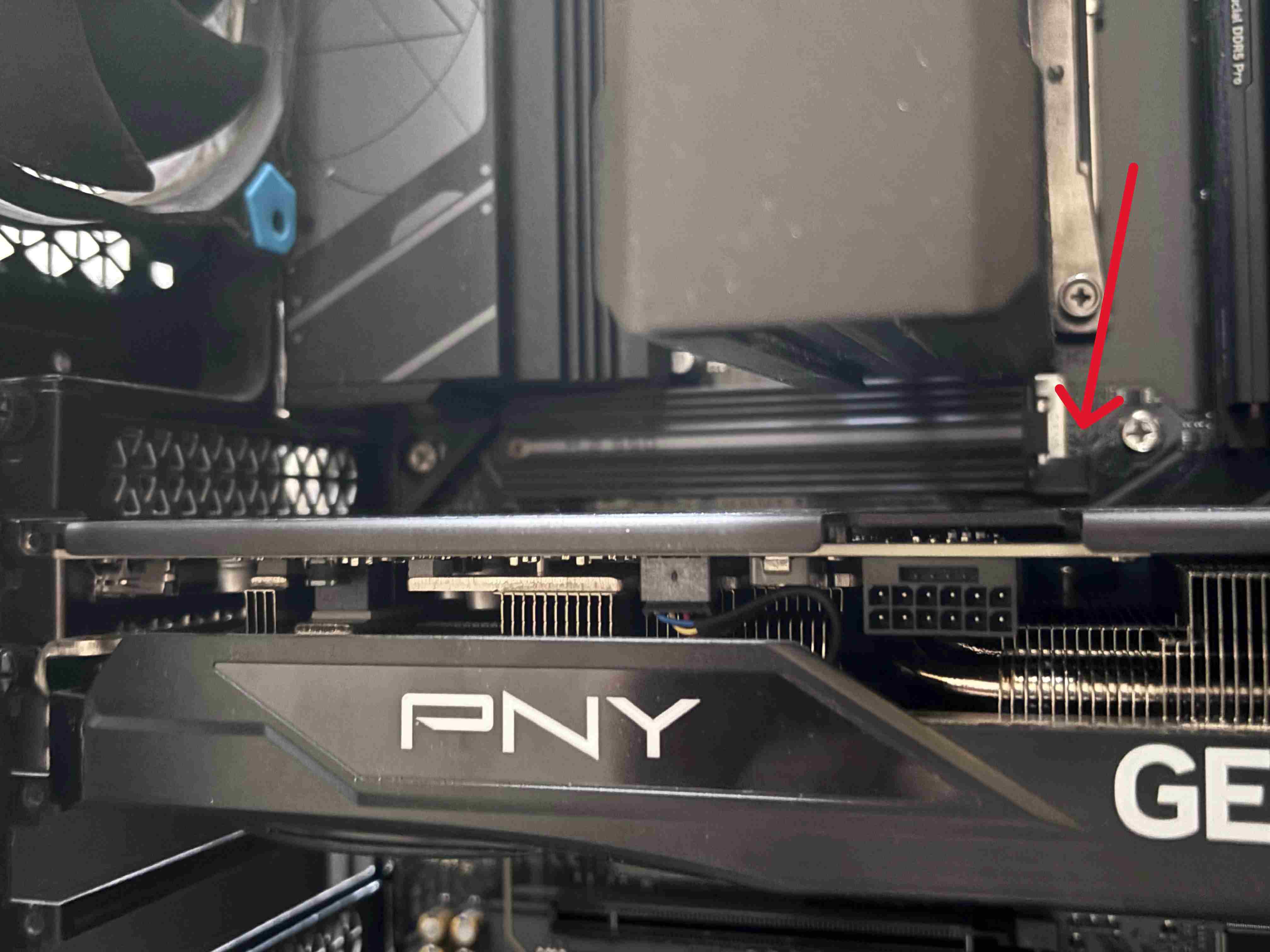
- GPU should be fully inserted into PCIe slot (no visible gap)
- Retention clip should be locked
- GPU backplate should be flush with case bracket
If loose: Unlock retention clip, remove GPU, reinsert firmly until click.
Check Power Connections
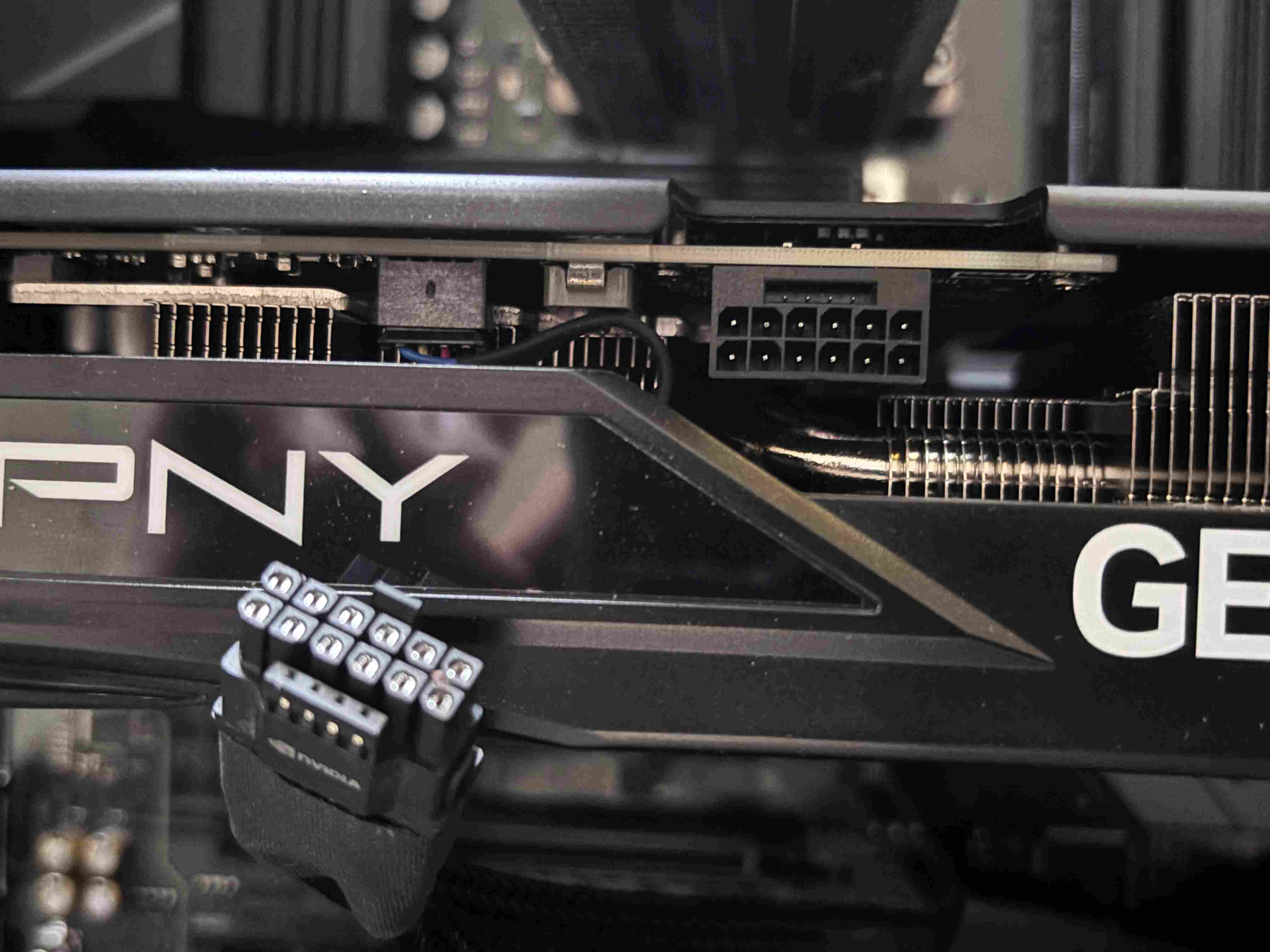
- All PCIe power cables firmly connected to GPU
- No bent pins on power connectors
- Cables fully inserted (you should hear/feel a click)
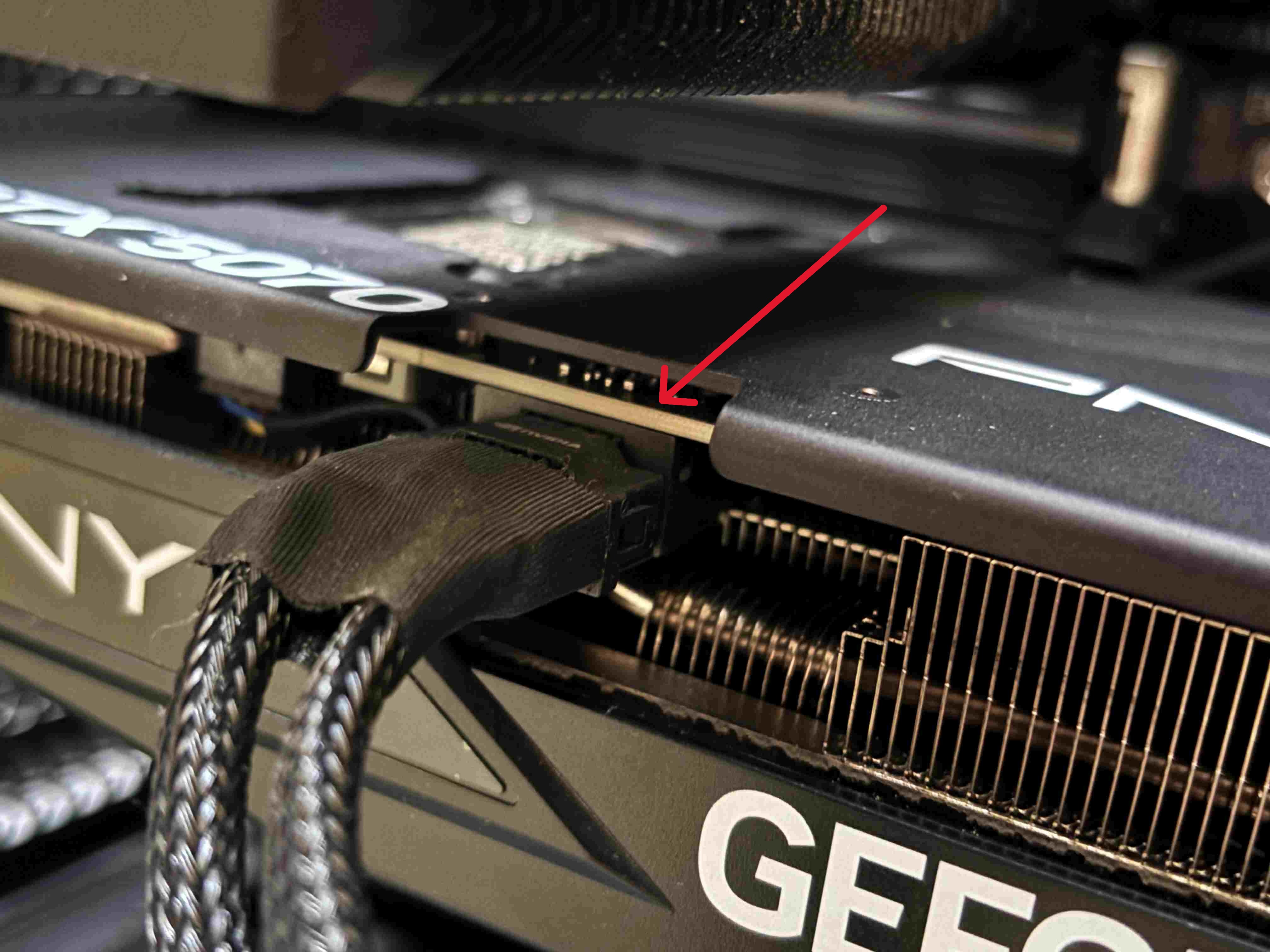
Common mistakes:
- Using PCIe power cables from a different PSU (can damage GPU)
- Mixing 6+2 pin cables incorrectly
- One cable loose while others are tight
Check for Physical Damage
Look for:
- Bulging or leaking capacitors on GPU PCB
- Burn marks on GPU board or power connectors
- Dust buildup blocking fans or heatsink fins
- Broken fan blades
Clean if needed: Use compressed air to blow dust from heatsink and fans (GPU powered off).
Step 2: Monitor GPU Temperatures
From Windows's Task Manager -> Performance. You could also use GPU-Z for more detailed monitoring and even Furmark. More details below.
Idle Temperature Test
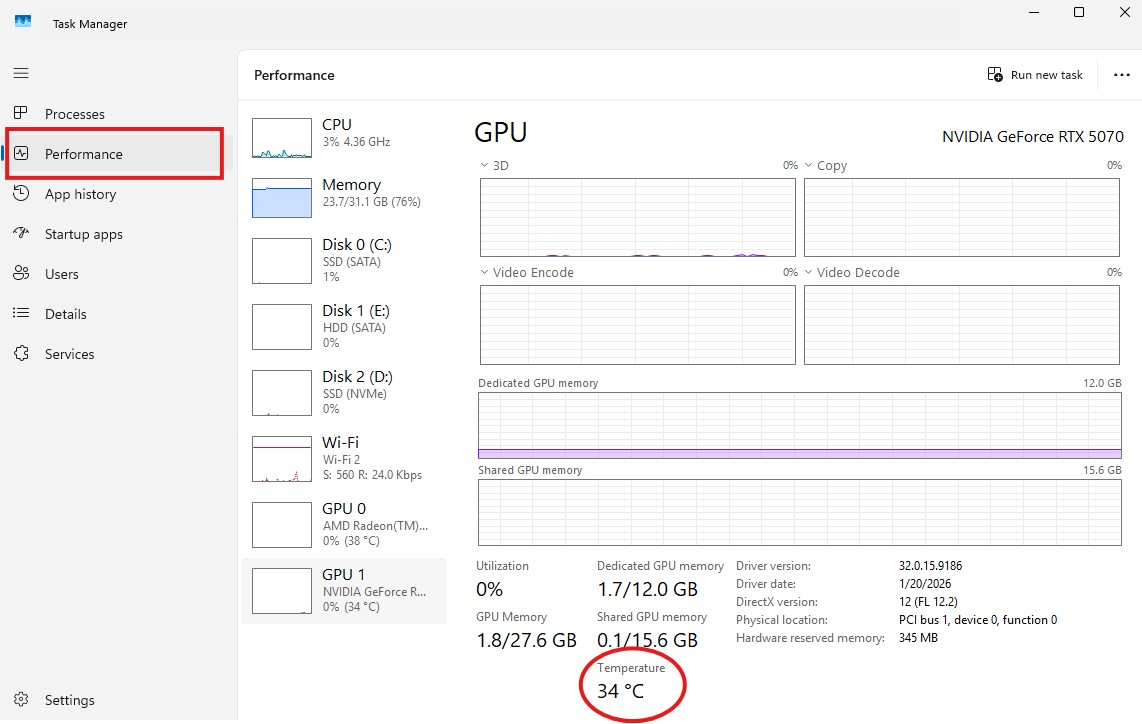
- Open Task Manager
- Go to Performance tab
- Note the GPU "Temperature" at idle (desktop, no programs running)
Normal idle temps:
- 30-50°C: Good
- 50-60°C: Acceptable (warm room or poor case airflow)
- 60°C+: Problem - Check fan operation, clean heatsink
Load Temperature Test
- Run a demanding game or benchmark for 15 minutes.
- Download Furmark and run the GPU stress test for 15-30 minutes (details in Step 4).
- Monitor "GPU Temperature" in GPU-Z, Furmark, or Task Manager during the test.
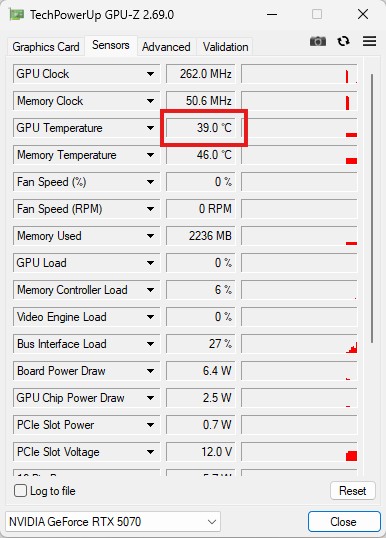
Normal load temps:
- 65-80°C: Good
- 80-85°C: Acceptable (hot day, small case)
- 85-90°C: Concerning - Thermal throttling may occur
- 90°C+: Critical - GPU will throttle or crash
If temps are too high:
- Check GPU fans are spinning (visible through case or listen for noise)
- Clean heatsink with compressed air
- Reapply thermal paste (advanced, voids warranty)
- Improve case airflow (Airflow Guide - Still In Progress)
Step 3: Driver Testing
GPU driver corruption is extremely common and mimics hardware failure.
Use DDU (Display Driver Uninstaller)
Why DDU instead of standard uninstall:
- Removes ALL driver files (standard uninstall leaves remnants)
- Cleans registry entries
- Removes conflicting driver versions
Steps:
- Download DDU from Wagnardsoft's website
- Install but do NOT run it yet
- Boot into Safe Mode (Shift + Restart → Troubleshoot → Advanced → Startup Settings → Safe Mode). Doing it in Safe Mode ensures no drivers are loaded, allowing DDU to clean completely.
- Run DDU, select your GPU brand (NVIDIA/AMD)
- Click "Clean and Restart"
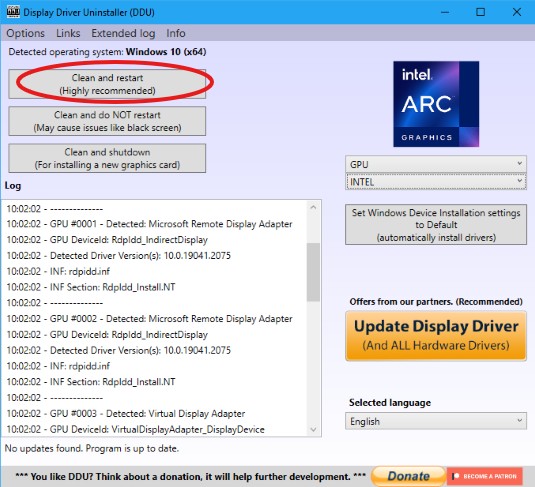
- After restart, install latest drivers from manufacturer:
- NVIDIA: Download from nvidia.com/drivers
- AMD: Download from amd.com/drivers
Test After Driver Reinstall
Run the task that normally causes issues:
- Play the game that crashes
- Run the 3D application that stutters
- Test for 30+ minutes
| Result | Diagnosis |
|---|---|
| Problem fixed | Driver corruption - Keep drivers updated |
| Problem persists | Continue to Step 4 (hardware testing) |
Step 4: GPU Stress Testing
FurMark pushes GPUs harder than any game. If your GPU can't handle FurMark, it's failing.
Run FurMark Stress Test
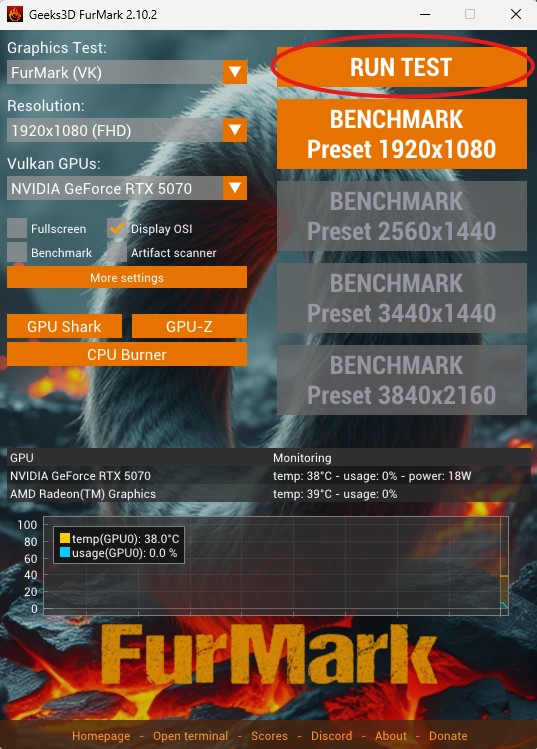
- Download and install FurMark
- Set resolution to your monitor's native resolution
- Enable "GPU temperature alarm" at 85°C
- Click "GPU Stress Test"
- Let it run for 15-30 minutes
What to watch for:
| Symptom | Meaning |
|---|---|
| Crashes within 5 minutes | GPU likely failing |
| Artifacts (visual glitches) | VRAM failure or overheating |
| Temperatures exceed 90°C | Cooling problem |
| Screen goes black | Power delivery issue (GPU or PSU) |
| Runs 30 min without issues | GPU hardware is fine |
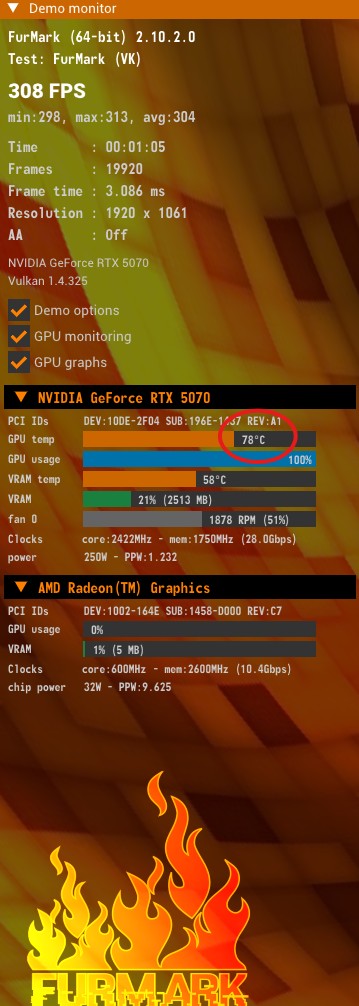
Interpreting Furmark Results
Passed (30 min stable, temps under 85°C):
- GPU hardware is fine
- Check for game-specific issues
- Update game, verify files, check DirectX
Failed (crashes, artifacts, black screen):
- Test with different PCIe slot if available
- Test with different power cables
- Continue to Step 5 (power testing)
High temps but no crash:
- Thermal throttling likely
- Clean GPU heatsink thoroughly
- Check case airflow
- Consider repasting thermal compound
Step 5: Power Delivery Testing
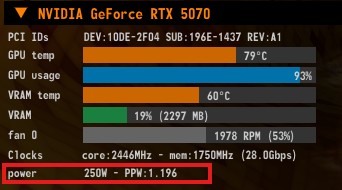
GPU crashes can be caused by insufficient or unstable power.
Calculate Power Requirements
Your GPU needs:
- Sufficient PSU wattage (total system power)
- Correct PCIe power cables (6-pin, 8-pin, or 12-pin)
- Stable power delivery (no voltage drops under load)
Check your GPU's TDP:
They can be found here:
- Rigsync GPU comparison page. Similar chips have similar power requirements.
- We also show the Recommended PSU Wattage for each GPU, which includes the 25% headroom. In the rare case we don't have the TDP listed, you can calculate it using the procedure below.
- CPU TDPs can also be found on Rigsync CPU comparison page.
- Found on manufacturer's website or GPU-Z
- Example: RTX 4070 = 200W TDP
Calculate total system power: GPU TDP + CPU TDP + 150W (other components) = Total Watts Example: 200W + 125W + 150W = 475W system draw
PSU recommendation: Your PSU should have 25% headroom above system draw. 475W × 1.25 = 594W minimum PSU Safe PSU: 650W or higher
If your PSU is underpowered:
- Symptoms: Crashes under load, black screens, system reboots
- Solution: Upgrade PSU (PSU Diagnosis Guide)
Test with Different Power Cables
Use separate PCIe power cables for each GPU connector
- Wrong: Daisy-chaining one cable to multiple GPU connectors
- Right: Two separate cables from PSU to GPU
Try different PCIe power cables from your PSU (if modular)
Ensure cables are from the same PSU brand/model
- Never mix PSU cables - can damage components
Step 6: Test in Different PCIe Slot
If your motherboard has multiple PCIe x16 slots:
- Power off PC
- Remove GPU from current slot
- Insert into different PCIe x16 slot
- Boot and test
If problem disappears:
- Original PCIe slot is damaged
- Motherboard issue, not GPU
- RMA motherboard if under warranty
If problem persists:
- Confirms GPU is the issue
- Proceed to replacement/RMA
Common GPU Failure Patterns
Artifacting (Visual Glitches)
Symptoms: Random colored squares, lines, textures corrupted
Causes:
- VRAM (video memory) failure
- GPU core overheating
- Insufficient power delivery
Test:
- Lower GPU clock speeds using MSI Afterburner (-100 MHz)
- If artifacts disappear, VRAM or power issue
- If artifacts persist, GPU core failure
Solution: RMA GPU if under warranty, replace if not.
Black Screen After Boot
Symptoms: PC powers on, fans spin, but no display output
Causes:
- GPU not detected by motherboard
- BIOS set to wrong display output (iGPU vs discrete GPU)
- GPU power not connected
Test:
- Connect monitor to motherboard (integrated graphics)
- If display works, GPU not detected
- Check BIOS settings (set to PCIe graphics, not iGPU)
- Reseat GPU and power cables
If still no signal:
- Test GPU in another PC
- Test another GPU in your PC
- If GPU works elsewhere, motherboard PCIe slot failed
Crash to Desktop (CTD)
Symptoms: Game crashes to desktop, no error message or generic error
Causes:
- Driver issue
- GPU overheating
- Insufficient power
- Game-specific bug
Test:
- Clean install drivers (DDU method)
- Monitor temps during crash (should be under 85°C)
- Run FurMark stress test (should pass 30 min)
- Update game, verify files
If only one game crashes:
- Game issue, not GPU
- Check game forums, update GPU drivers for that game
Real-World Example
Problem: RTX 3070 crashes after 20 minutes of gaming. Clean boot didn't help.
Testing process:
- ✅ Visual inspection - No physical damage, power cables secure
- ✅ Temperature monitoring - Idle 45°C, load 78°C (normal)
- ✅ DDU driver reinstall - Problem persists
- ❌ FurMark stress test - Crashed after 8 minutes
Further testing:
- Swapped PSU with known-good 750W unit → Still crashed
- Moved GPU to different PCIe slot → Still crashed
- Lowered GPU clocks -150 MHz → Passed FurMark for 30 min
Diagnosis: GPU unable to handle factory boost clocks (silicon defect or degradation)
Solution: RMA'd GPU under warranty. Replacement GPU runs stable at full clocks.
Summary
GPU troubleshooting requires systematic testing to isolate the failure.
The process:
- Visual inspection (seating, power, physical damage)
- Temperature monitoring (idle and load temps)
- Driver testing (DDU clean install)
- Stress testing (FurMark 30 min)
- Power testing (PSU wattage, cable quality)
- PCIe slot testing (try different slot)
Results:
- Passes all tests → GPU hardware fine (check game-specific issues)
- Fails stress test → GPU hardware failure (RMA or replace)
- High temps → Cooling issue (clean, repaste, improve airflow)
- Power-related crashes → PSU insufficient (PSU Guide)
This guide isolates GPU failures. For other components, see related guides.
Next Steps
If GPU is confirmed faulty:
- Check for possible return
- Check warranty status (EVGA, ASUS, MSI typically 3 years)
- Contact manufacturer for RMA
- GPU Comparison Tool - Find replacement options
Need a new GPU?
- Component Browser - Compare GPUs within your budget
- Custom Builder - Build complete system around new GPU
Comments (0)
No comments yet. Be the first to share your thoughts!