Building a PC can feel overwhelming. There are hundreds of components, compatibility rules to follow, and no clear starting point if you've never done it before.
RigSync is designed to remove that friction. It handles compatibility automatically and guides you through the process at whatever level of detail you want - whether that's picking games and letting it figure out the rest, or handpicking every component yourself.
Three Ways to Build
There's no single right way to use RigSync. The Builder offers three paths depending on how involved you want to be.
Game-Based Builder
Best for: First-time builders and gamers
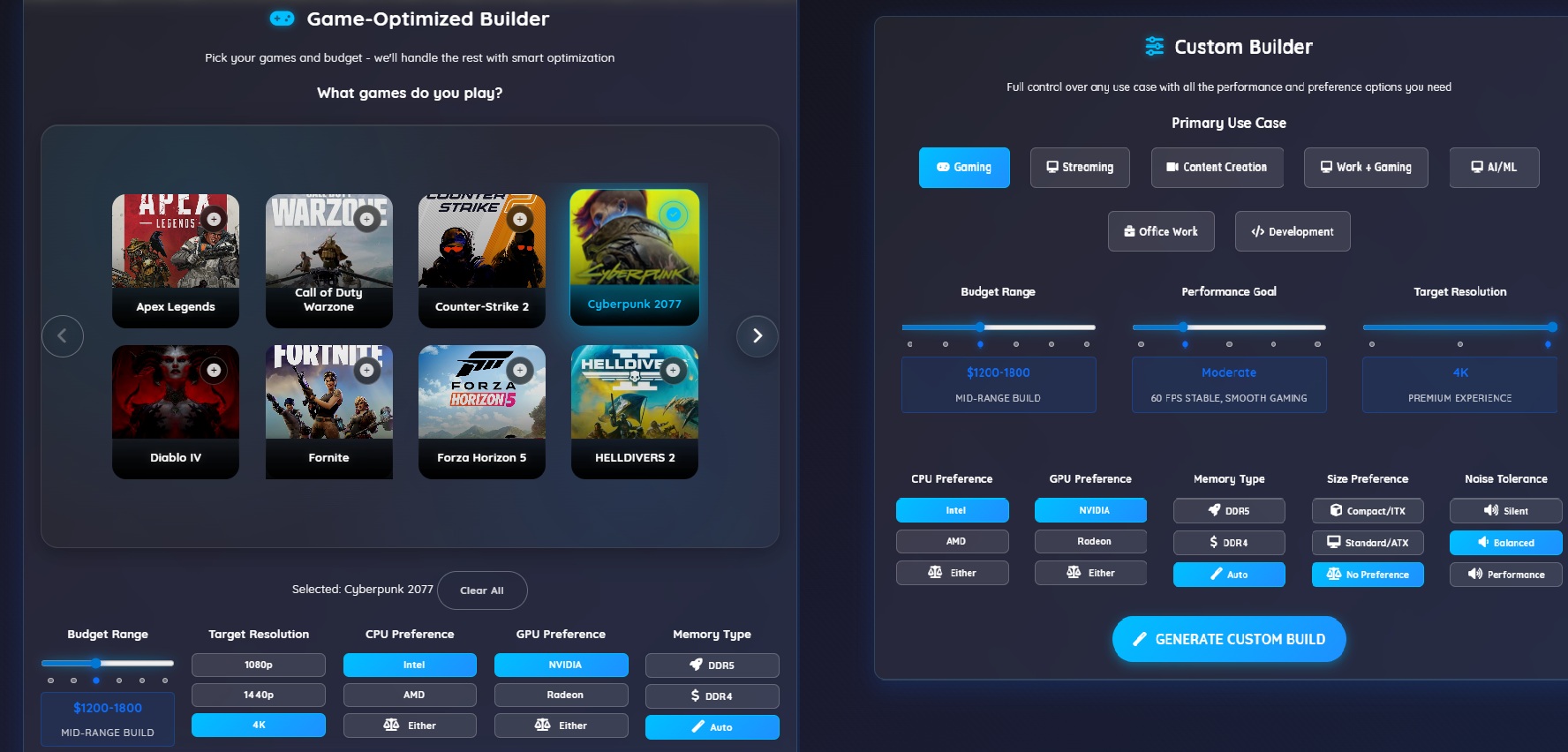
Tell it what games you play, set a budget, and choose a target resolution (1080p, 1440p, or 4K). RigSync handles the rest - optimizing every component to hit your performance targets without overspending on parts that won't make a difference for your use case.
The builder selects games from a curated list and uses real benchmark data to understand their hardware demands. A competitive shooter like Counter-Strike 2 and a demanding open-world title like Cyberpunk 2077 have very different hardware requirements - selecting both helps the optimizer find components that handle your full library, not just your easiest game.
Performance goal is set automatically based on your budget and target resolution. A $1,200 budget at 1440p will target High performance; the same budget at 1080p can reach Ultra. You can always hit Generate and see the actual FPS estimates before committing.
What you control:
- Games you want to play
- Budget range
- Target resolution (1080p / 1440p / 4K)
- CPU brand preference (Intel / AMD / Either)
- GPU brand preference (NVIDIA / Radeon / Either)
- Memory type (DDR4 / DDR5 / Auto)
Start with Game-Based Builder →
Custom Builder
Best for: Most users
You set the priorities - use case, budget, performance goal, brand preferences - and RigSync finds the optimal components. This works well for gaming, content creation, development work, work-gaming balance, or office use.
Unlike the Game-Based Builder, the Custom Builder lets you select a Primary Use Case that shapes how the optimizer allocates your budget. A gaming build prioritizes GPU performance. A content creation build leans into CPU and rendering performance with more memory. A workstation build focuses on CPU throughput and memory capacity for demanding professional workloads.
The Performance Goal slider gives you direct control that the Game-Based Builder handles automatically. Setting it lower gives the optimizer more budget flexibility for a well-rounded build. Setting it higher pushes toward stronger GPU and CPU selections.
For use cases like Office Work, the builder skips discrete GPU selection entirely when integrated graphics is sufficient - freeing up budget for storage, memory, and a better CPU. A separate CPU cooler may also be omitted if the selected processor includes a capable stock cooler.
What you control:
- Primary use case (Gaming / Work + Gaming / Content Creation / Professional Workstation / Office Work)
- Budget range
- Performance goal
- Target resolution (for gaming and content creation use cases)
- CPU brand preference
- GPU brand preference
- Memory type
- Size preference (Compact / Standard / Auto)
- Noise tolerance (Silent / Balanced / Performance)
Component Browser
Best for: Hardware enthusiasts
Full control. Browse, filter, and handpick every component yourself. RigSync validates compatibility in real time as you build, so you won't accidentally choose a CPU that doesn't fit your motherboard or a GPU that exceeds your PSU's capacity.
This path is best if you already have a shortlist of components in mind, want to compare specific models side by side, or are upgrading a partial build and only need to fill in the gaps.
The compatibility checker runs continuously as you add parts - flagging socket mismatches, memory type conflicts, PCIe slot issues, clearance problems, and power supply shortfalls before they become expensive mistakes. Each warning includes an explanation of what the conflict is and why it matters.
The Component Browser also includes a Build Topology panel — a live diagram of every PCIe slot, M.2 slot, DIMM slot, and SATA port on your selected motherboard. It updates in real time as you add components, showing slot assignments, effective bandwidth, and any slots disabled or physically blocked by your current configuration. Hover over any occupied slot to see which component is installed there.
Every GPU and expansion card row includes a slot selector — click the slot badge to see every available PCIe slot with its lane count, generation, and effective bandwidth, and pick one directly. If the slot you select is already occupied, the displaced component is automatically re-assigned to the next best available slot. The Optimize button in the topology panel clears all manual slot choices and lets the auto-assigner find the best overall configuration from scratch.
What you control:
- Every component, selected manually
- Filtering by specs, brand, price, and compatibility
- Real-time compatibility validation across the full build
- Live build topology diagram with slot assignments and bandwidth
- Manual PCIe slot selection for GPUs and expansion cards
- Performance analysis as you assemble
A note on approach: The Component Browser works best when you have a clear goal in mind. If you're starting from scratch without a target budget or use case, the Custom Builder will get you to a complete, optimized build faster - you can always switch to the Component Browser afterward to swap individual components.
Start with Component Browser →
Compatibility Warnings
Every builder runs the same compatibility engine in the background. As you add components, RigSync checks for conflicts across the entire build - not just obvious things like socket compatibility, but subtler issues too.
What gets checked:
- CPU and motherboard socket and chipset compatibility
- Memory type, speed, slot count, and channel configuration
- GPU length, PSU wattage, and power connector requirements
- Case clearance for GPU, CPU cooler height, and radiator length
- PCIe slot availability, physical slot blocking from wide GPU bodies, and board edge extension
- Expansion card lane availability and placement after GPU slot assignment
- Front panel USB-C header support
- Monitor connectivity (HDMI, DisplayPort, legacy adapters)
- BIOS update requirements for newer CPU generations
The Component Browser additionally surfaces topology warnings — a separate category that fires after basic compatibility passes. These cover PCIe bandwidth reduction, M.2 lane downshifts from CPU limitations, slot conflicts and lane sharing, chipset uplink saturation, and PCIe bifurcation requirements for NVMe expansion cards. Each warning includes an actual GB/s figure and a calibrated impact note — so instead of just knowing that a GPU is running at x8 lanes, you know whether that's a negligible difference or a real constraint for your workloads. This system currently supports AM5, AM4, LGA1700, LGA1851, and sTR5 platforms, with more on the way.
Warnings are categorized by severity. Hard errors — things that will prevent the system from booting or physically fitting — are shown regardless of which builder you use. Advisory warnings, which flag things that work but aren't optimal, are filtered based on context.
The Game-Based Builder keeps advisory notices focused. Informational checks relevant to professional workloads, advanced memory configurations, or GPU tier analysis on optimizer-generated builds are kept out of the way - not because the checks don't run, but because they're not relevant to what you're building. A first-time gamer doesn't need to know about ECC memory support on a gaming CPU.
The Custom Builder and Component Browser show the full picture. If you're building a workstation, streaming rig, or mixed-use system, those advisory warnings become useful signals - helping you understand trade-offs before committing to a part.
One practical example: if you select a high-end GPU with a budget CPU on a manually assembled build, the compatibility checker will flag a potential performance imbalance and suggest better-matched options. The same GPU in an optimizer-generated build won't trigger that warning, because the optimizer intentionally balances GPU performance against a gaming-first budget - the imbalance is expected and accounted for. The optimizer is tune to get you a working PC for your budget as a priority.
What RigSync Does Behind the Scenes
Regardless of which builder you use, RigSync automatically:
- Validates compatibility - CPU socket, RAM type, PCIe slots, case clearance, PSU wattage, cooler height, and more
- Optimizes within budget - Finds the best component balance rather than defaulting to the most expensive parts
- Estimates real-world performance - FPS predictions based on actual benchmark data across hardware tiers
Think of them as realistic targets, not guarantees. Your actual results depend on drivers, background applications, and Windows configuration - but the estimates give you a solid baseline for what to expect.
Sharing a Build
Once you have a build you're happy with, you can share it directly from any builder using the Share button.
Direct link: Generates a short URL that anyone can open to instantly view and import your exact build - no account required.
Export formats: If you want to post your build elsewhere, the share panel includes multiple export formats:
| Format | Best for |
|---|---|
| Reddit Post | Posting a full build breakdown on r/buildapc |
| Reddit Comment | Replying to someone asking for build advice |
| BBCode | Forums and communities that use BBCode formatting |
| HTML | Embedding a build list on a website or blog |
| Plain Text | Anywhere else - Discord, email, notes |
| JSON | Importing builds into other tools or apps |
With a free account: You can give each build a custom name and description before sharing, which makes it easier to explain your reasoning - useful if you're sharing a work-gaming balance build or a budget streaming setup and want to add context.
Not Sure Where to Start?
If you've never built a PC before, the Game-Based Builder is the fastest path to a complete, compatible build. Pick a few games you play, set your budget, and it will produce a full parts list in under a minute.
From there, you can compare builds, adjust components, and see how changing your budget affects performance - all without needing to know what a PCIe lane is.
What's Coming
RigSync is in constant improvement. A few things already in progress:
Professional Workstation workflows — now live
The Professional Workstation use case now opens a guided workflow. Pick a specific workload — AI/ML, 3D rendering, video editing, CAD, scientific computing, or virtualization — and the builder surfaces only the preferences that matter for it: GPU count, VRAM, model size and precision, RAM capacity, and more. Everything else stays out of the way. There's a full walkthrough in Building a Workstation with RigSync.
Optimizer improvements
Performance predictions, component scoring, and budget allocation are continuously refined. The goal is always the same: builds that perform as predicted in the real world, not just on paper.
Expansion card catalog
The expansion card category is live with PCIe NVMe adapters. More card types — network cards, capture cards, and other PCIe peripherals — will be added as the catalog grows.
More products...
Further Reading
Once you have a build you're happy with, these guides can help with the next steps:
Comments (0)
No comments yet. Be the first to share your thoughts!