RAM Testing Guide - Diagnose Memory Issues
RAM failures are notoriously hard to pin down because the symptoms — random freezes, BSODs, application crashes — look identical to a dozen other problems. An unstable CPU overclock produces the same signs. So does a failing power supply or corrupted system files.
This guide gives you a reliable process to confirm whether RAM is actually the cause.
Common scenarios: Your PC freezes randomly with no pattern. Failing RAM, or an overclock that's pushed too far? You're getting BSODs with different error codes each time. Faulty memory, or a driver conflict? Windows boots fine but crashes under load. A bad RAM stick, or a software issue?
Before you replace your memory or reinstall Windows, run through this process first.
Covers both the Windows Memory Diagnostic tool for a quick check and MemTest86 for thorough overnight testing. Set aside a few hours — complete RAM testing takes time.
When to Suspect RAM Issues
Use this guide if you've already:
- ✅ Performed a clean boot and the problem persisted (Clean Boot Guide)
- ✅ Tested your GPU if crashes happen during gaming (GPU Guide)
RAM-specific symptoms:
System Instability:
- Random freezes (mouse stops moving, screen frozen)
- BSODs with memory-related error codes
- Programs crash with "Access Violation" errors
- Windows boot failures or automatic repairs
Performance Issues:
- System slower than normal
- Applications taking longer to open
- File corruption (downloads fail, saves corrupted)
Visual Indicators:
- Beep codes on startup (motherboard-specific)
- PC boots but no display (potential RAM seating issue)
RAM Diagnostic Flowchart
| Step | Check | Result: YES | Result: NO |
|---|---|---|---|
| 1 | Did you perform a clean boot first? | Continue to Step 2 | Perform Clean Boot first |
| 2 | Does the problem persist in clean boot? | Continue to Step 3 | ✅ Software conflict - not a RAM issue |
| 3 | Run Windows Memory Diagnostic - errors found? | ❌ RAM is faulty → Isolate the bad stick | Continue to Step 4 |
| 4 | Run MemTest86 overnight - errors found? | ❌ RAM is faulty → Isolate the bad stick | Continue to Step 5 |
| 5 | Errors only with XMP/DOCP enabled? | ⚠️ Unstable overclock - disable XMP or lower speed | ✅ RAM is fine - test other components |
If RAM is fine, continue with:
Prerequisites
Before starting:
- Clean boot completed - Software conflicts eliminated
- Have 8-12 hours available (MemTest86 runs overnight)
- USB drive (for MemTest86)
- Know your RAM configuration (number of sticks, capacity)
You'll need:
- Windows Memory Diagnostic (built into Windows)
- MemTest86 (bootable USB)
- Notepad (to track results)
Step 1: Windows Memory Diagnostic (Quick Test)
Windows has a built-in memory tester. It's faster than MemTest86 but less thorough.
Run Windows Memory Diagnostic
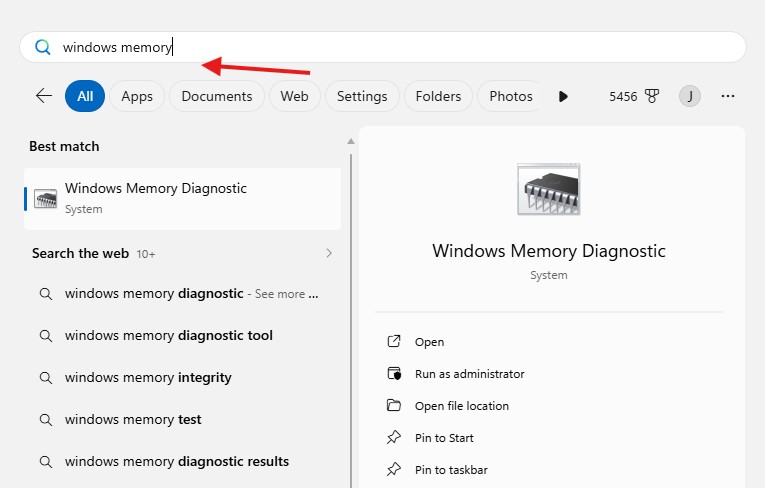
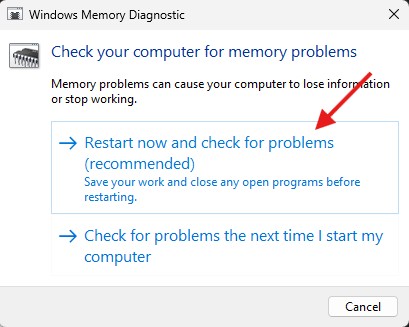
- Press
Winkey - Type
Windows Memory Diagnostic - Click "Restart now and check for problems"
Your PC will restart into the diagnostic tool.
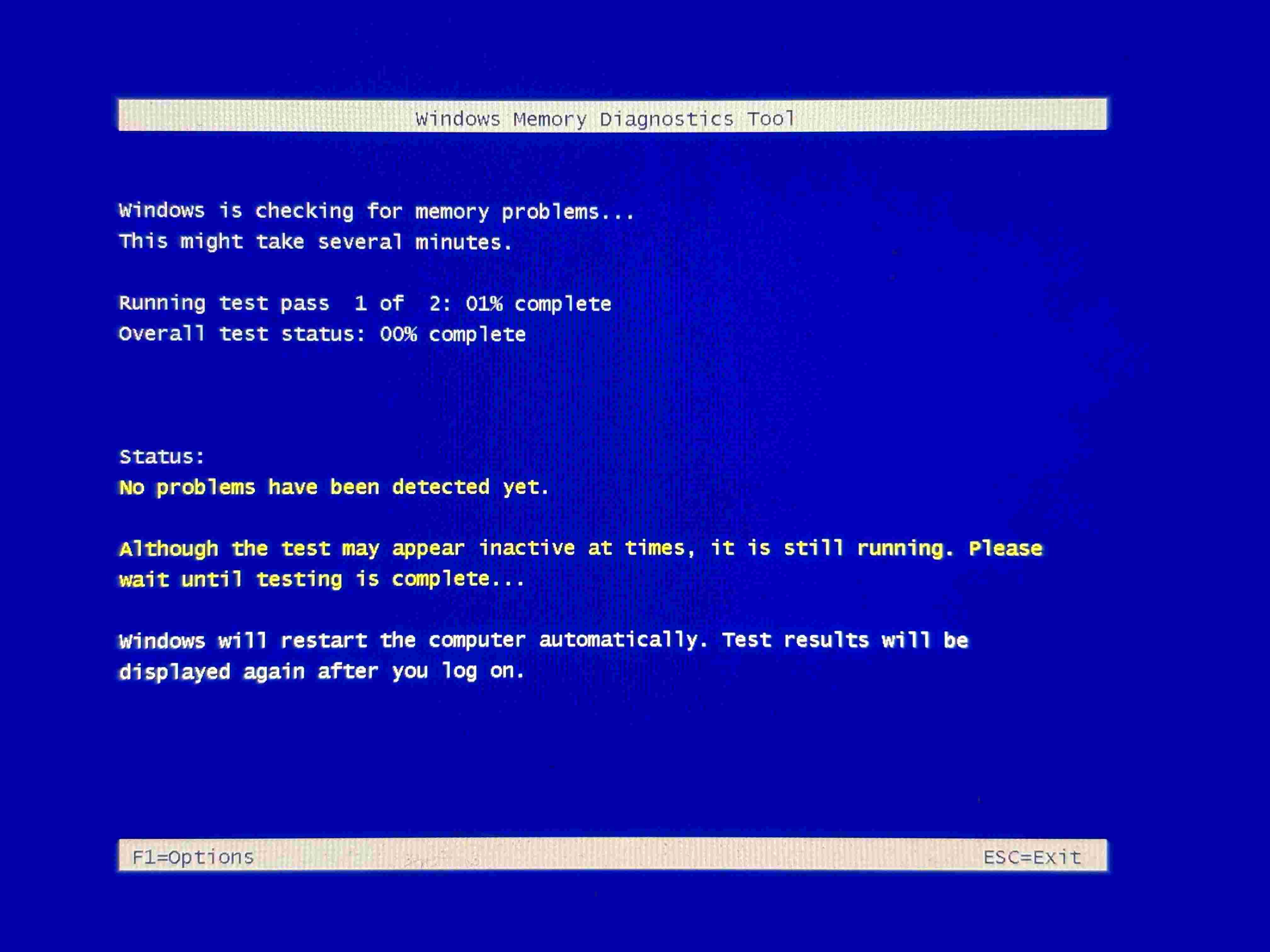
Test duration: 15-30 minutes
What to watch:
- Progress bar shows test completion
- "Status" shows if errors are detected
Interpreting Results
After testing completes, Windows will restart normally.
Check results:
- Open Event Viewer (search in Start menu)
- Navigate to: Windows Logs → System
- Look for "MemoryDiagnostics-Results"
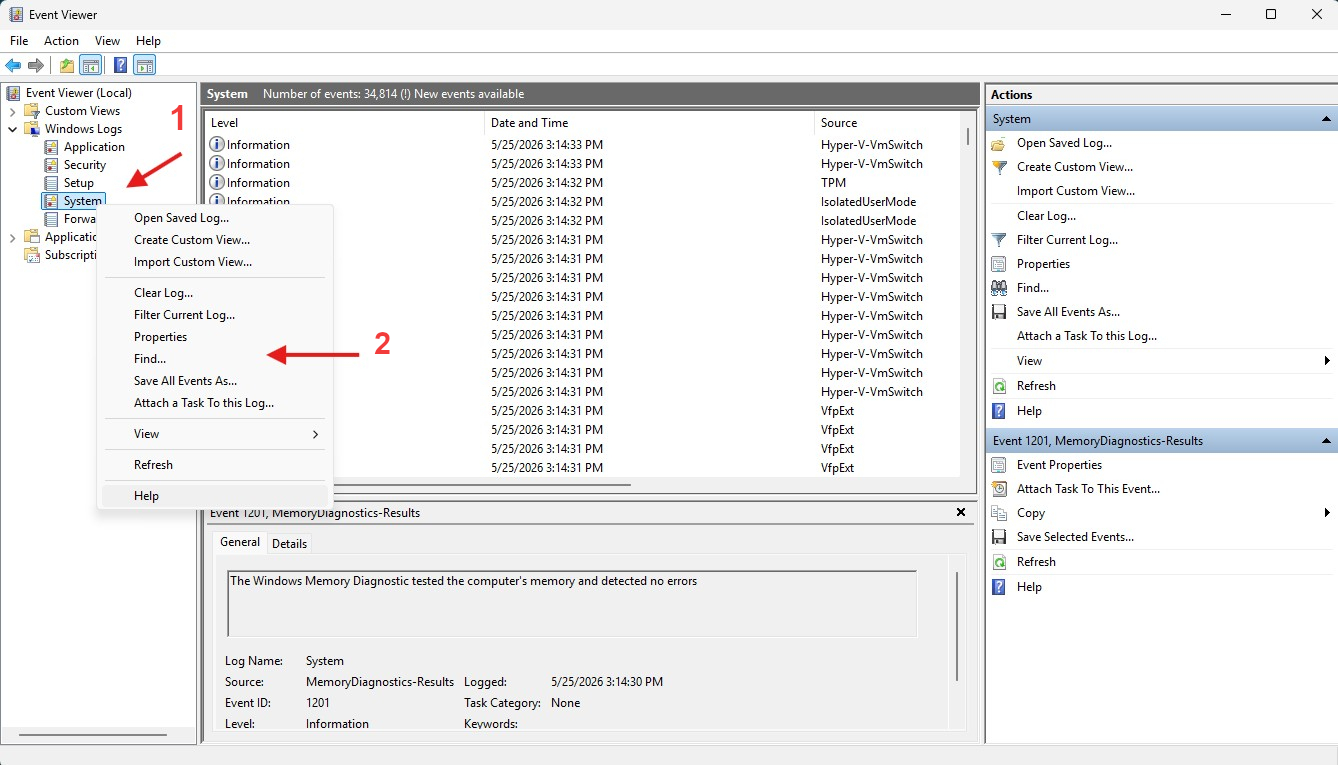
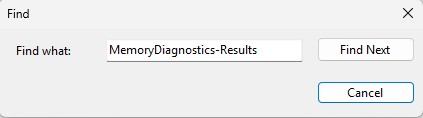
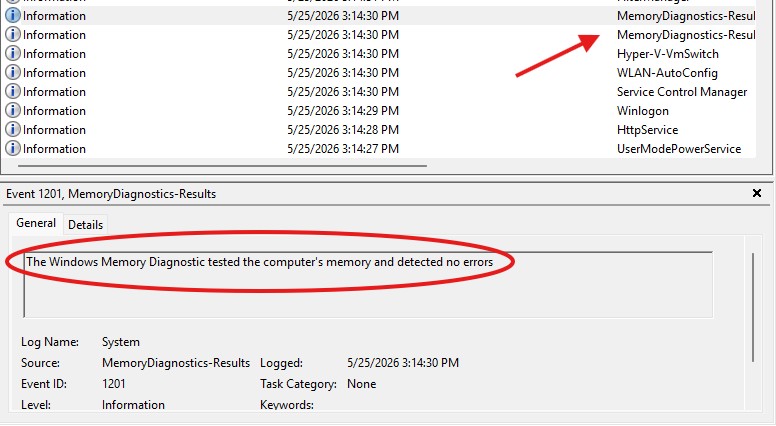
If you cannot find the event through this method, you can also use the command prompt or powershell:
- Open Command Prompt or PowerShell
- Run the following command in Command Prompt:
PowerShell "Get-WinEvent -FilterHashTable @{LogName='System'; Id=1101,1201} -ErrorAction Ignore | Where {$_.ProviderName -Match 'MemoryDiagnostics-Results'}"

- Run the following command in PowerShell:
Get-WinEvent -FilterHashTable @{LogName='System'; Id=1101,1201} -ErrorAction Ignore | Where {$_.ProviderName -Match 'MemoryDiagnostics-Results'}

| Result | Next Action |
|---|---|
| No errors detected | Continue to Step 2 (MemTest86) |
| Errors detected | RAM is faulty - Continue to Step 3 (identify bad stick) |
Windows Memory Diagnostic limitations:
- Runs from Windows (can miss some errors)
- Only tests ~30 minutes (intermittent issues need longer)
- Less thorough than MemTest86
Always run MemTest86 even if Windows diagnostic passes.
Step 2: MemTest86 (Thorough Overnight Test)
MemTest86 is the industry standard for RAM testing. It boots independently of Windows and tests every byte of RAM.
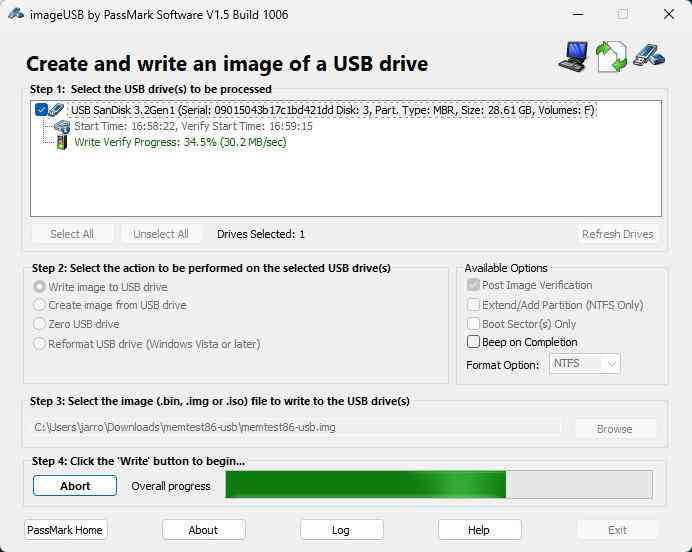
Create MemTest86 Bootable USB
- Download MemTest86 from memtest86.com
- Download the USB installer (not ISO)
- Insert USB drive (will be erased)
- Run MemTest86 installer
- Select your USB drive
- Click "Create"
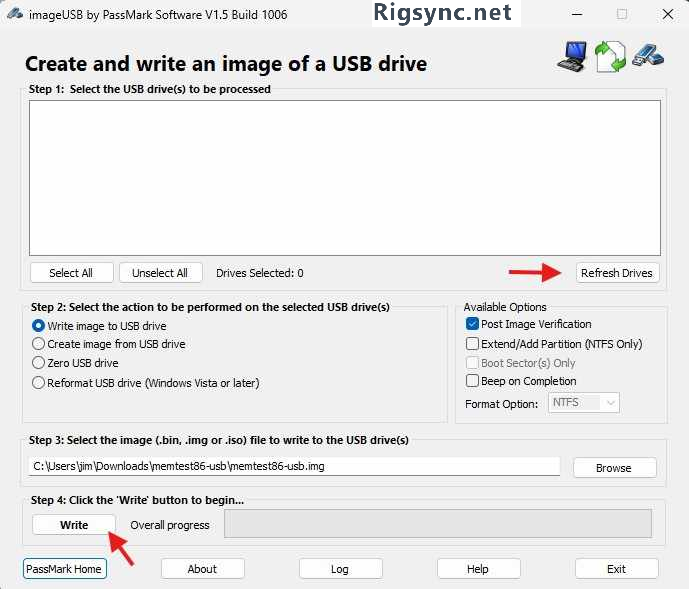
Boot from MemTest86 USB
- Insert MemTest86 USB drive
- Restart PC
- Enter BIOS/Boot Menu (typically F2, F12, or Del during boot)
- Select USB drive as boot device
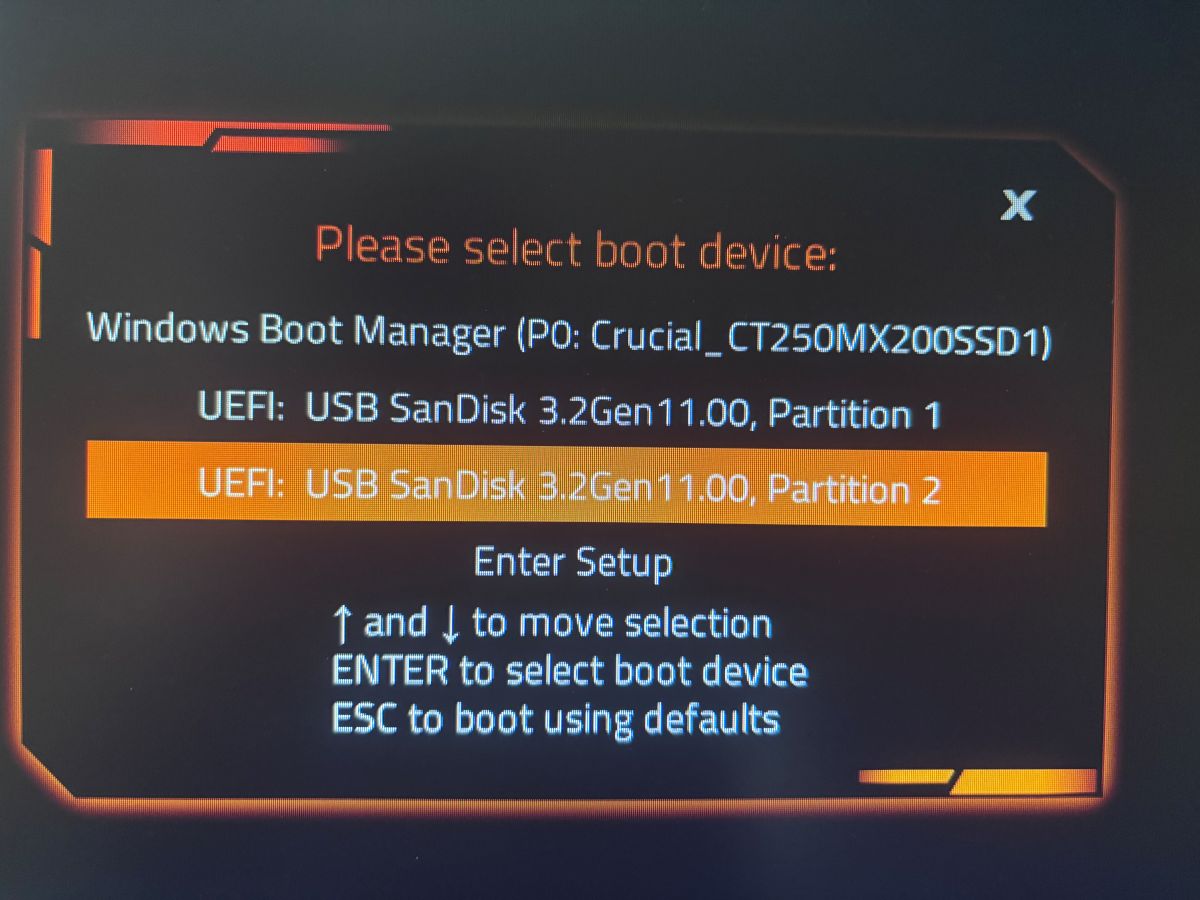
MemTest86 will start automatically.

Run MemTest86 Overnight
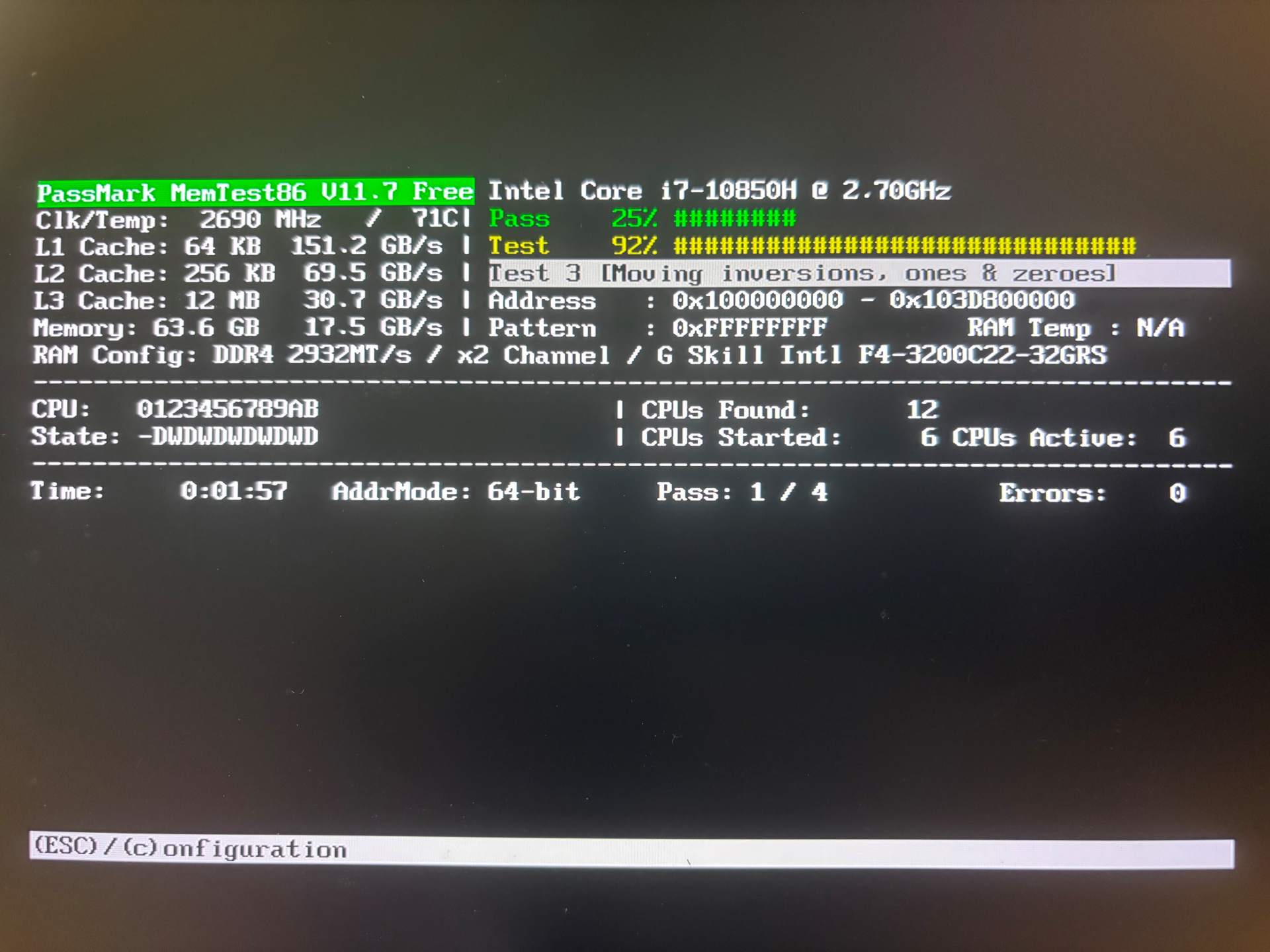
Default settings are fine - Just let it run.
What it tests:
- Pass 1-4: Basic pattern tests (fast)
- Pass 5-8: Extensive pattern tests (slow)
- Pass 9-12: Torture tests (very slow)
Test duration:
- Minimum: 4 passes (1-2 hours)
- Recommended: 8 passes (4-6 hours)
- Thorough: Overnight (8-12 hours)
What to watch:
- "Errors" count in top-right
- "Pass" number shows progress
- "Test" shows which test is running
Interpreting MemTest86 Results
| Errors Detected | Diagnosis |
|---|---|
| 0 errors after 8+ passes | RAM is fine |
| 1-10 errors | RAM is failing |
| 100+ errors | RAM is severely damaged |
| Errors on specific test | Note which test fails (helps identify pattern) |
If any errors are found:
- RAM is faulty
- Proceed to Step 3 (identify which stick)
If no errors after overnight test:
- RAM hardware is fine
- Check other components:
Step 3: Identify the Bad RAM Stick
If MemTest86 found errors, you need to identify which RAM stick is faulty.
Test RAM Sticks Individually
- Power off PC
- Remove all RAM sticks except one
- Boot with single stick
- Run MemTest86 for 4+ passes
- If errors: That stick is bad
- If no errors: That stick is good
- Repeat for each stick
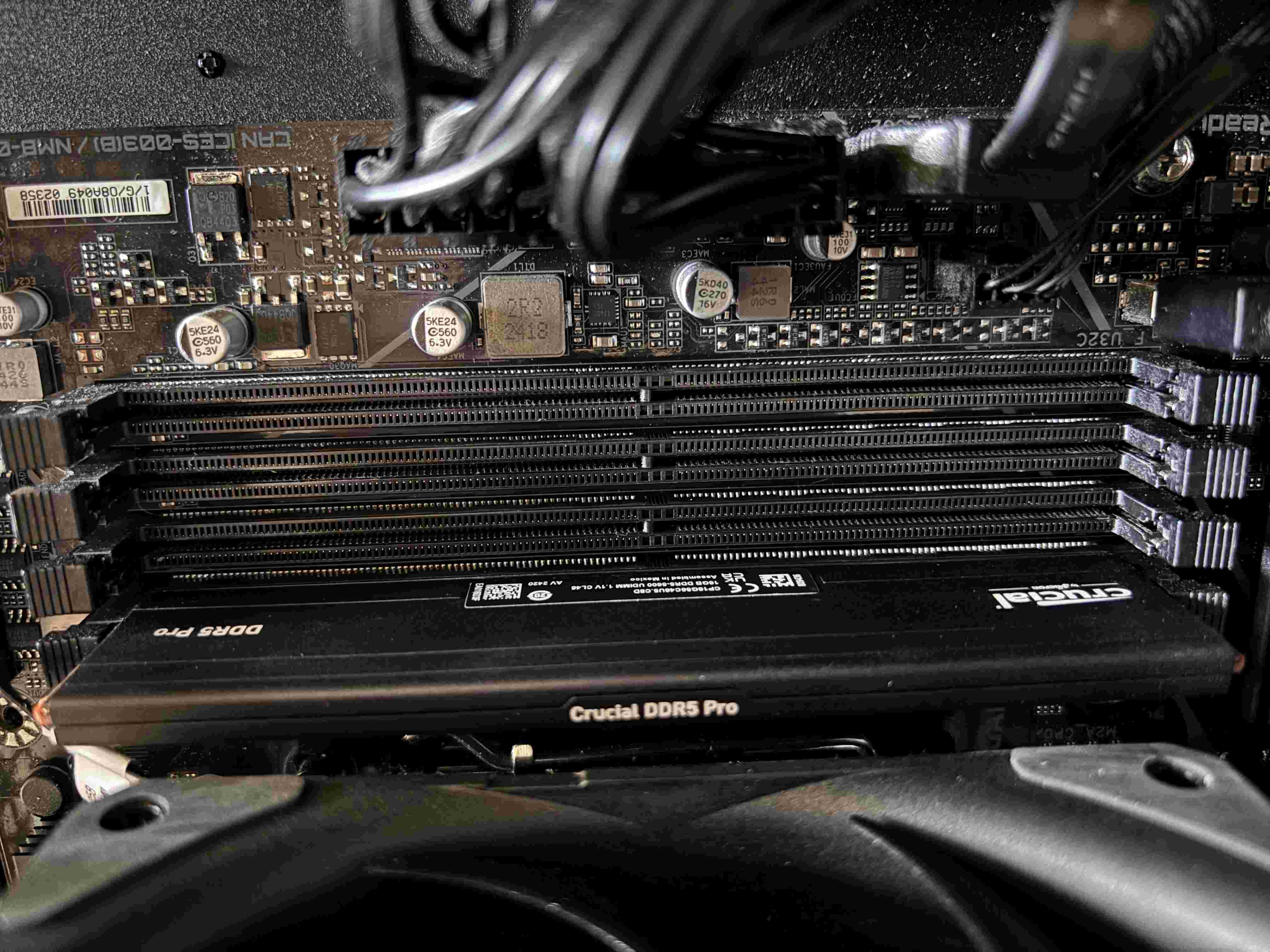
Track your results: Stick 1 (Slot 1): 0 errors - GOOD Stick 2 (Slot 2): 0 errors - GOOD Stick 3 (Slot 3): 47 errors - BAD Stick 4 (Slot 4): 0 errors - GOOD
Replace only the bad stick(s).
Test RAM Slots (Motherboard Issue)
Sometimes the RAM slot is damaged, not the RAM stick.
Test each slot:
- Take a known-good RAM stick (passed MemTest86)
- Test it in each motherboard slot
- Run MemTest86 for 2 passes per slot
| Result | Diagnosis |
|---|---|
| Errors in one specific slot | That motherboard slot is damaged |
| Errors in all slots | RAM stick is actually bad |
| No errors in any slot | RAM and motherboard are fine |
If a slot is damaged:
- Avoid using that slot
- RMA motherboard if under warranty
- Use remaining functional slots
Step 4: Common RAM Configurations & Issues
Single-Channel vs Dual-Channel
Dual-channel mode requires matched RAM sticks in specific slots.
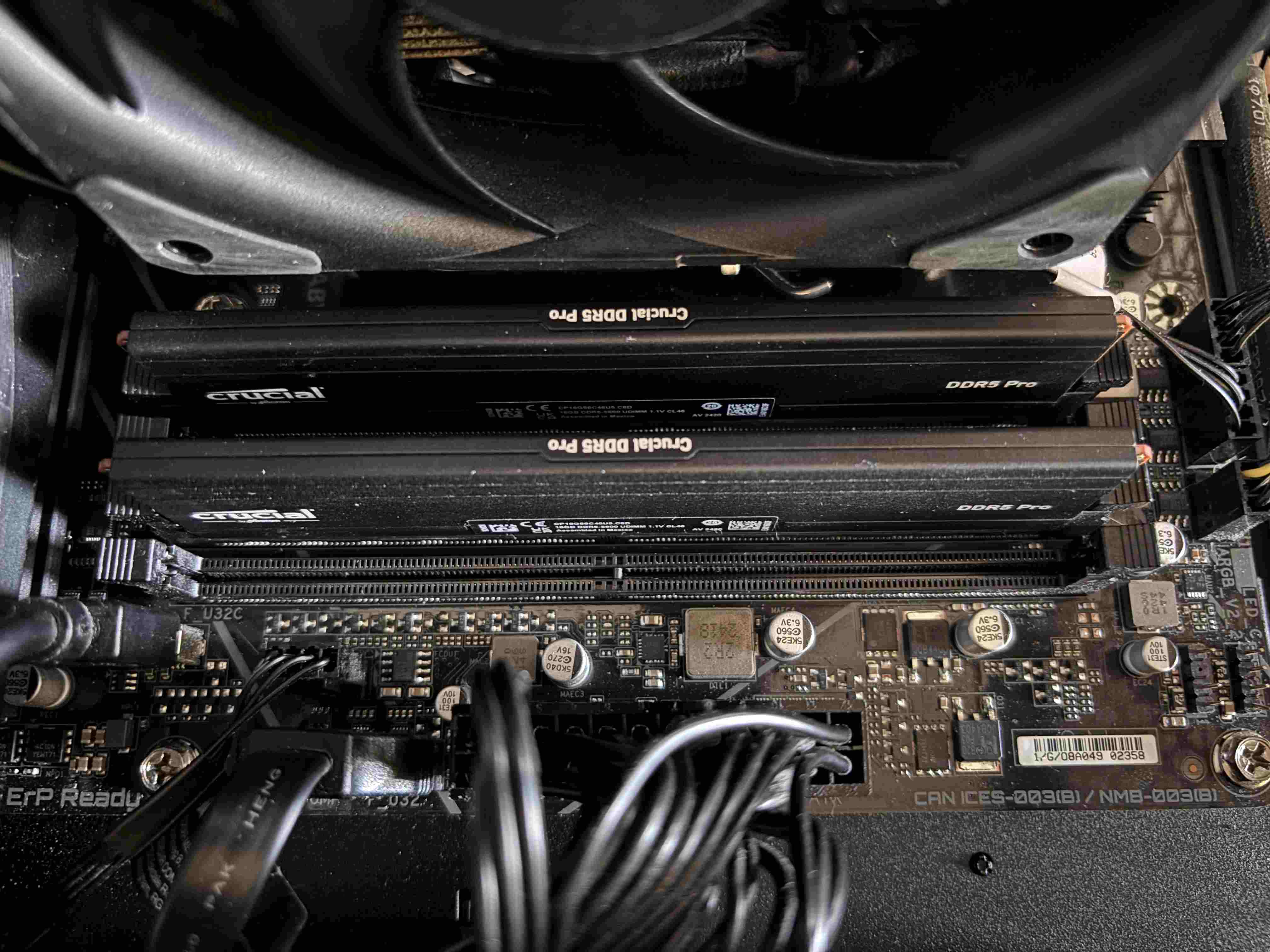
Typical dual-channel configuration:
- 2 sticks: Slots 2 & 4 (or A2 & B2)
- 4 sticks: All slots filled
Check your motherboard manual for correct slot configuration.
If RAM is mismatched:
- Different speeds (3200 MHz + 3600 MHz)
- Different brands
- Different capacities (8GB + 16GB)
Results:
- PC may boot in single-channel mode (50% slower memory bandwidth)
- May cause stability issues
- May not boot at all
Solution: Use matched RAM kits (same speed, brand, capacity).
XMP/DOCP Profiles
XMP (Intel) / DOCP (AMD) overclocks RAM to advertised speeds.
Problem: Unstable XMP profiles can mimic RAM hardware failure.
Test:
- Enter BIOS
- Disable XMP/DOCP (set RAM to default JEDEC speeds)
- Save and reboot
- Run MemTest86
| Result | Diagnosis |
|---|---|
| Errors gone | Unstable XMP profile (not hardware failure) |
| Errors persist | RAM hardware failure |
If XMP is unstable:
- Try lower speed XMP profile (3600 MHz → 3200 MHz)
- Manually tune timings
- Increase RAM voltage slightly (+0.05V)
- Update motherboard BIOS
Step 5: Physical RAM Issues
Reseating RAM
Poor contact between RAM and slot causes boot failures.
How to reseat:
- Power off PC, unplug power cable
- Press power button (discharge residual power)
- Open case
- Push down RAM slot retention clips
- Carefully remove RAM stick (pull straight up)
- Inspect RAM contacts (gold pins)
- Should be clean, no corrosion
- If dirty, clean with isopropyl alcohol
- Reinsert RAM firmly until clips click
After reseating:
- Try booting
- If successful, run MemTest86 to confirm stability
Cleaning RAM Contacts
If RAM contacts are oxidized or dirty:
- Use 90%+ isopropyl alcohol and lint-free cloth
- Gently wipe gold contacts
- Let dry completely (alcohol evaporates quickly)
- Reinsert into slot
Never use:
- Water
- Household cleaners
- Abrasive materials
Common RAM Failure Patterns
Pattern 1: Boot Failure (No Display)
Symptoms:
- PC powers on
- Fans spin
- No display output
- No POST beep
Causes:
- RAM not seated properly
- Dead RAM stick
- Incompatible RAM
Test:
- Reseat all RAM sticks
- Try booting with one stick only
- Test each stick individually
- Try different RAM slots
Pattern 2: Random BSODs
Symptoms:
- Blue screen errors:
MEMORY_MANAGEMENTPAGE_FAULT_IN_NONPAGED_AREAKERNEL_DATA_INPAGE_ERROR
Causes:
- Failing RAM
- Unstable XMP profile
- Corrupted Windows files (unrelated to RAM)
Test:
- Run MemTest86 overnight
- Disable XMP/DOCP in BIOS
- If errors persist, run
sfc /scannow(Windows System File Checker)
Pattern 3: Errors at Specific Addresses
MemTest86 shows errors at same memory address repeatedly:
Example: Pass 3, Test 6 Address: 0x12AB34C0 - Error Address: 0x12AB34C0 - Error Address: 0x12AB34C0 - Error
Diagnosis: Specific DIMM has bad cells at that address.
Solution: Replace that RAM stick.
Real-World Example
Problem: PC freezes randomly, especially during video editing. Clean boot didn't help.
Testing process:
- ✅ Windows Memory Diagnostic - No errors found
- ✅ MemTest86 overnight - 0 errors after 8 passes
- ✅ Disabled XMP profile - Freezes still occur
- ❌ Suspected other hardware
Further testing:
- Tested RAM sticks individually - All passed MemTest86
- Tested each motherboard slot - Slot 3 failed with every RAM stick
- Avoided Slot 3, used Slots 1, 2, 4 only
Diagnosis: Motherboard RAM slot damaged (not RAM failure)
Solution: Avoided bad slot. System stable with 3 RAM sticks. RMA'd motherboard under warranty.
Summary
RAM testing requires patience because errors can be intermittent.
The process:
- Windows Memory Diagnostic (quick 30-min test)
- MemTest86 overnight (8+ passes thorough test)
- Individual stick testing (identify bad RAM)
- Slot testing (rule out motherboard issues)
- XMP/DOCP testing (rule out unstable overclock)
Results:
- MemTest86 errors → RAM hardware failure (replace stick)
- Errors in one slot only → Motherboard slot damaged
- Errors only with XMP enabled → Unstable overclock (not hardware)
- No errors after overnight → RAM is fine (test other components)
RAM failures are confirmed by MemTest86 errors. Trust the data.
Next Steps
If RAM is confirmed faulty:
- Check warranty (most RAM has lifetime warranty)
- Contact manufacturer for RMA
- Memory Comparison - Find replacement RAM
If RAM passed all tests:
Need to upgrade RAM?
- Component Browser - Compare RAM options
- Custom Builder - Build balanced system
Comments (0)
No comments yet. Be the first to share your thoughts!